Download whole video channels for flights, with subtitles, in one command
Point the free tool yt-dlp at a channel the night before you travel and it saves every new video at the size you choose, with subtitles, skipping the ones you already have. Films, talks as tiny MP3s, whole series. Step 1 shows which videos are yours to keep.
- A licence filter that skips any video that isn't marked as free to copy
- Windows 10 or 11 (no admin rights needed), a Mac with Homebrew ↗, or Linux
- About 340MB for the tools, plus room for your videos
- To be OK typing a few commands. New to the terminal? Do the terminal survival kit first
Check you're allowed to keep it
Downloading a video is making a copy. Get this bit right and everything after it is simple.
yt-dlp is a free, open-source command-line tool that saves video and audio from thousands of websites. Downloading is making a copy, so start with what's yours to keep. Green light:
- Videos you made yourself. You own them.
- Creative Commons videos. The creator has said anyone may copy and share them, usually as long as you credit them (that's what Attribution or BY means).
- Public domain videos, such as most videos NASA makes itself.
CarefulRed light: almost everything else. Films, TV, music videos and most YouTube and social media videos belong to someone, and UK copyright law has no general "it's just for me" exception. For those, use the official offline option (YouTube Premium, the BBC iPlayer app, the download button in other streaming apps). Never get around a paywall, a login, a region block or copy protection.How to read the licenceLook on the video's own page. On PeerTube video sites, like Blender's own video.blender.org ↗, it's in the details under the description. "Attribution - Share Alike" is the Creative Commons BY-SA licence:
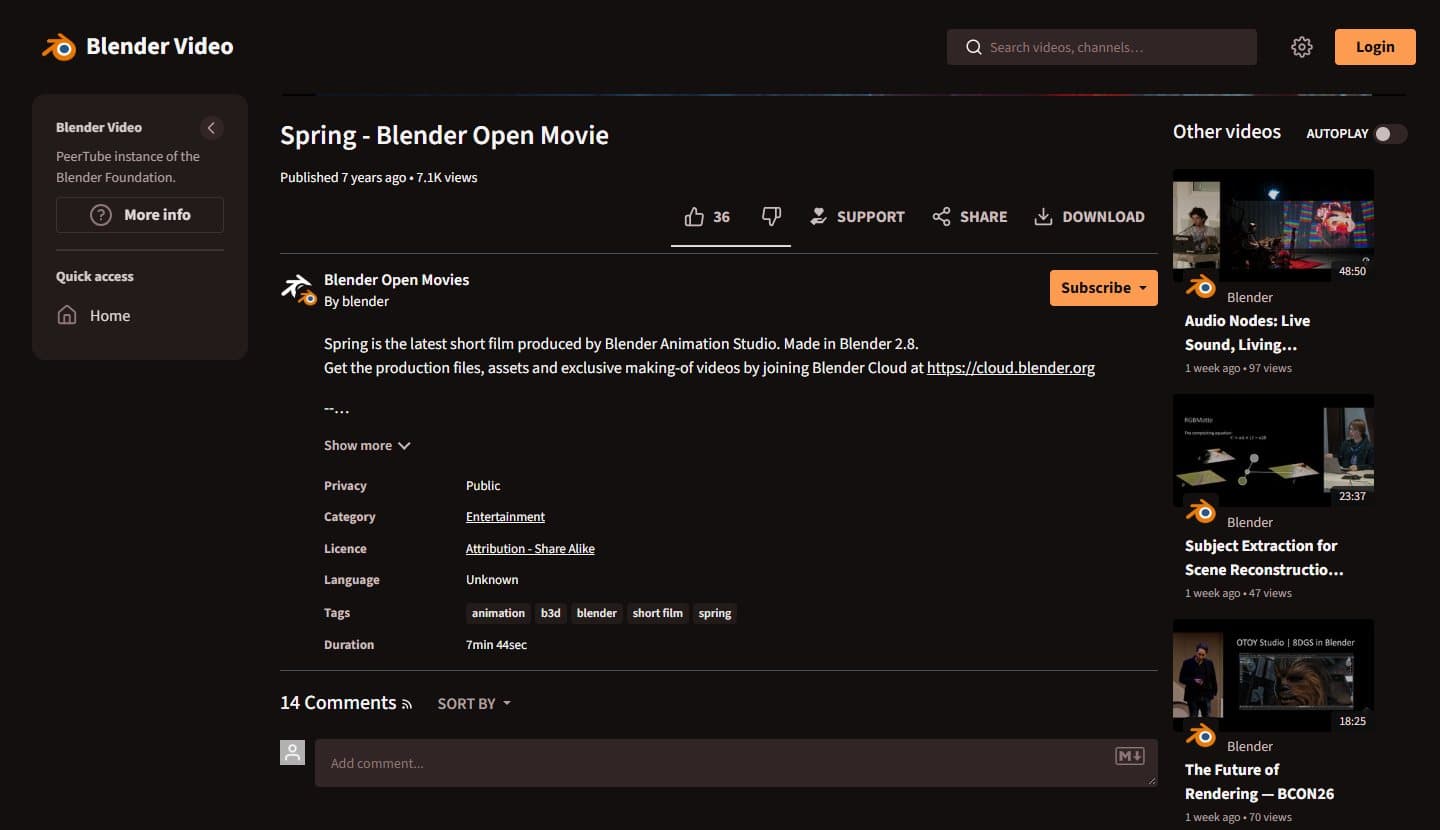
Spring by Blender Studio. The licence sits under the description. Note the site's own Download button too. On Wikimedia Commons ↗, scroll down to Licensing. This NASA video is public domain. Commons quotes NASA's policy that its material isn't protected by copyright unless it's marked otherwise, and lists the exceptions:
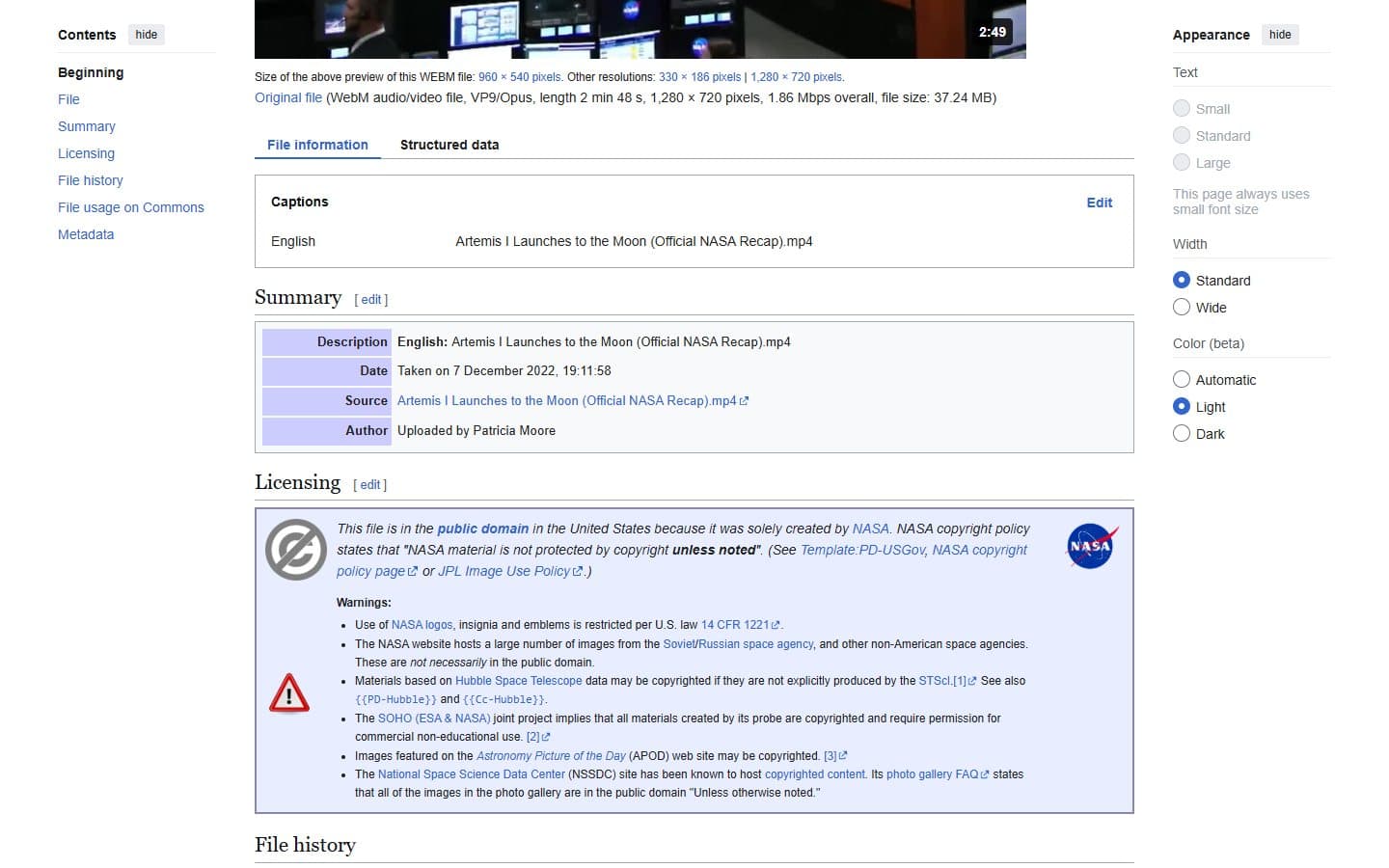
Commons shows the licence, the warnings and the exact file size (37.24MB, which matched what yt-dlp downloaded). TipIf a site has its own Download button, like the one in the first picture, that's the simplest way. yt-dlp earns its place when you want a particular size, just the audio, subtitles, or a whole channel in one go.